
Jandel has announced a special admin abuse event this Saturday, as he has “declared war” on Good Boy Sammy, who is the owner of Steal A Brainrot.
Jandel is doing a admin abuse battle with Steal A Brainrot, to see which game; Grow A Garden Vs Steal A Brainrot has the most players for admin abuse war event on Saturday. Plus, Jandel is going to give us a special reward for equipping the special Team Green Bean outfit. Keep reading to find out all about this crazy event!
The newest Grow A Garden update is set to launch on Saturday, the 23rd of August at 10am EST, with the admin abuse battle starting one hour before the event starts.
Jandel is aiming to get more players on Grow A Garden than there will be on Steal A Brainrot, and he has said he’s going to make a donation, for every 1 million more players Grow A Garden gets over Steal A Brainrot.
Jandel’s caption on his TikTok video to announce this battle was: “I’m declaring war on good boy Sammy… The debate who has better admin abuse ends next Saturday”.
Jandel has done a TikTok video today, saying he is calling on all Grow A Garden players.
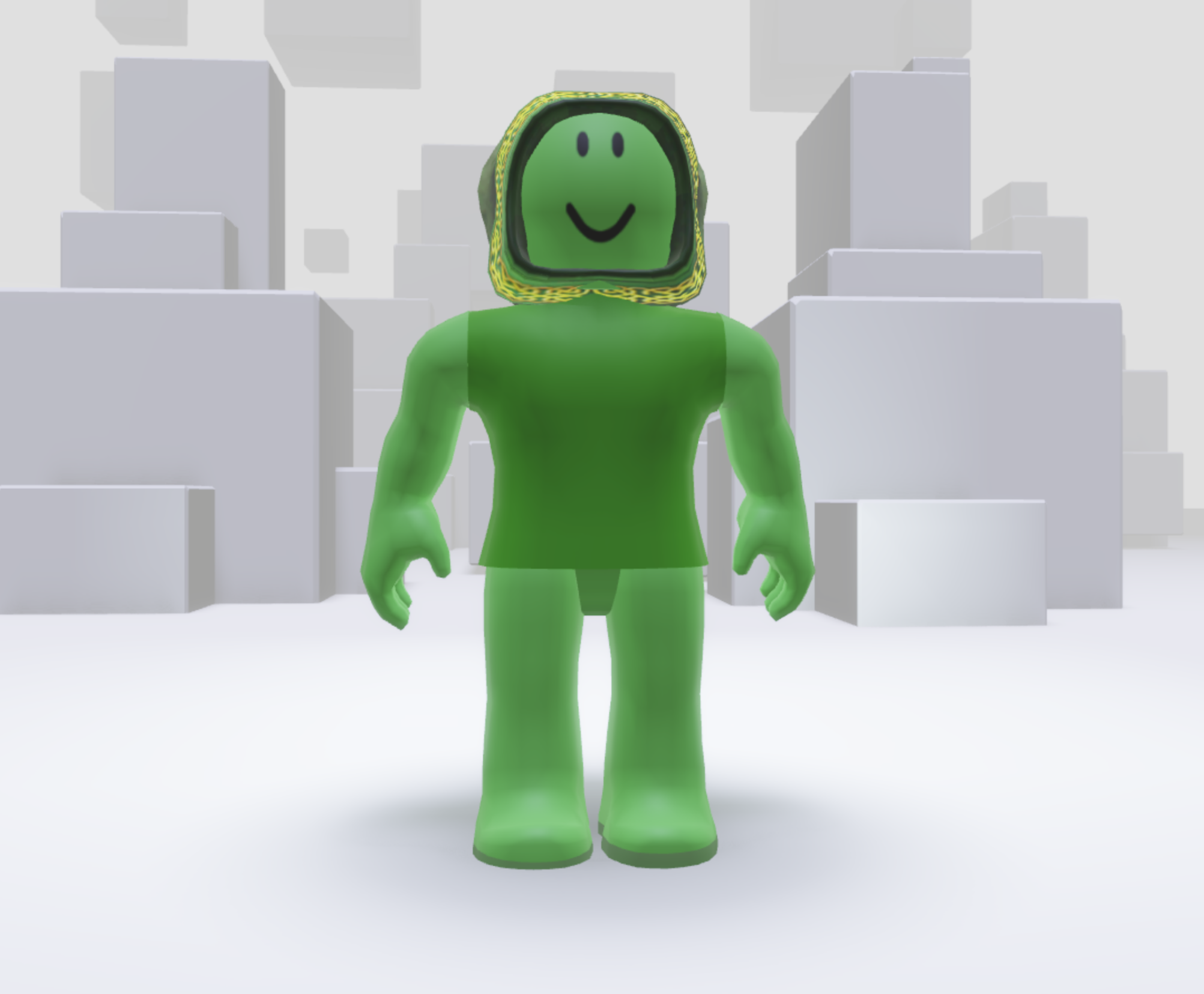
He wants us all to dress up as “green beans” and if you are dressed up in the Grow A Garden green bean outfit this Saturday, you’ll get a special reward, so you don’t want to miss out on that reward.
Past rewards for admin abuse events have been pets (like the Football pet, Cooked Owl pet, Zombie Chicken pet or Junkbot pet) or seeds (like the Fruitball seed), or even a cosmetic item (the Cooked Chicken cosmetic or the Flamingo cosmetic), so you need to make sure you have equipped the Green Bean outfit Jandel has created, and attend the admin abuse event, to get the crazy mutations, and get the special reward.
How To Get The Team Green Bean Outfit In Grow A Garden
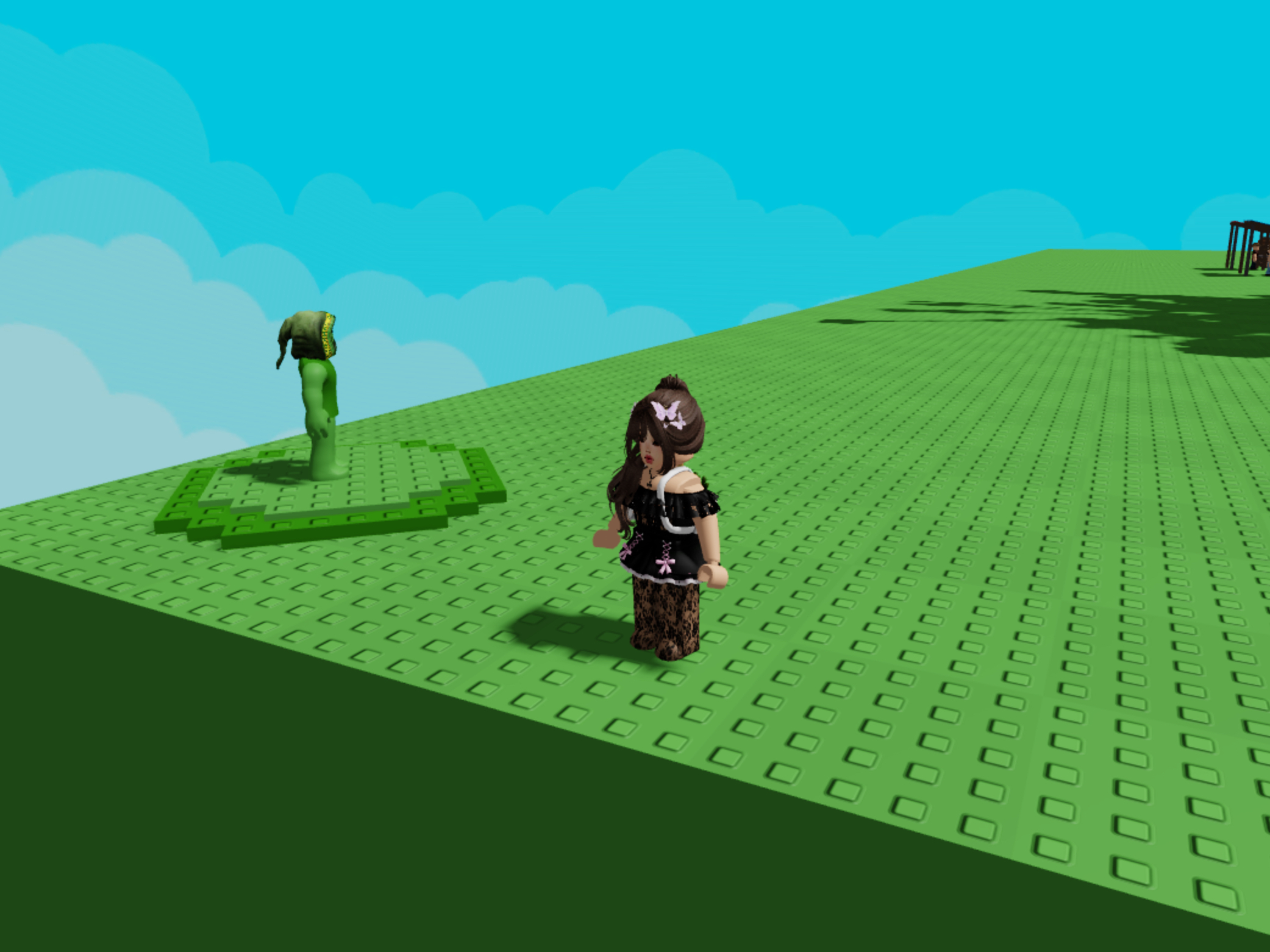
Jandel has created a hidden Green Bean mascot called Elder within the map, and it’s the far top corner, on the side of the map of the Seed Shop and Sell Shop.

You need to walk over to the NPC, and talk to him, and he’ll say “hello my beanling, what can I do for you?”, and it’ll give you three options:
- Who are you?
- I want to join the cause
- Nevermind

When you select the “I want to join the cause” option, you’ll get a pop-up black screen allowing you to “purchase” the green bean outfit.
The green bean outfit is completely free, and you’ll see that the outfit includes the Medieval Hood Of Mystery (for free) and the Roblox Boy avatar body (if you don’t already have that equipped).
This *should* then give you the Grow A Garden Team Green Bean outfit, however, it didn’t work for me, and I want to give you a workaround, if you also have an issue trying to get this outfit.
I have the Roblox woman body equipped, and this meant I wasn’t able to get the Team Green Bean outfit sorted.

To get the full green bean outfit, skin color, hat and body equipped, I had to do the following… (BEFORE YOU DO THIS, READ THE SECTION BELOW TITLED IMPORTANT)
- Go to this Team Green Bean link, which Jandel shared on his Twitter account (HERE).
- Click the blue arrow button to load up the Green Bean outfit game
- Click the big JOIN green button at the top of the screen
- On the black pop-up screen, it’ll ask if you want to join Team Green Bean and equip the outfit – select OK
- A black pop-up screen will appear asking you to “purchase” the outfit – but it is free and will not cost any Robux
- Your green bean outfit will now be equipped
IMPORTANT
Do not equip the green bean outfit without saving your avatar’s outfit first, as it will replace your entire outfit, hair, clothes and avatar body.
- To save your current avatar, go to the Avatar tab on Roblox (either on desktop or on mobile)
- Click “characters” and then click “creations”
- Click “create new character”
- Name your current outfit/avatar whatever you want
- Click “OK”
This means your entire outfit, skintone, body shape, hair, face etc. will be saved, and you can easily equip the entire outfit once the Team Green Bean Admin Event is over on Saturday.

What To Do If You Can’t Equip The Grow A Garden Team Green Bean Outfit
I couldn’t equip the Green Bean outfit easily. It kept telling me that it failed, and it was a nightmare to try and work out what the issue was.
I think the issue is for the avatars that use the Roblox Woman Body or the Roblox Girl Body, because the Green Bean outfit has been modelled on the Roblox Boy Body.
To equip the Roblox Boy Body, go to the Roblox Marketplace and type “ROBLOX Boy” into the search bar, or click here.
Click the blue “BUY” button – the Boy Body is free, so it will not cost you any Robux.

Once you’ve clicked the “BUY” button, head back to your Avatar tab within Roblox, click “recent”, and then click “recently added” and you should see the Roblox Boy avatar shape as the most recently added item to your inventory.
Once you equip the Roblox Boy body to your avatar, you can then head back to the Team Green Bean Game (link to Jandel’s Twitter post with the game), and then click Join to equip the green bean outfit.
Still Having Issues Trying To Equip The Team Green Bean Outfit?
I have an alt account, and I couldn’t get the outfit to work on that account, and I have no idea why?
For that account, I tried multiple things to get the outfit to work, and I don’t know which specific thing was what made it work for me, but here’s what I tried.
- If you’re wearing any “Classic” clothing items, that stopped the Green Bean outfit working for me. So I had to remove my Classic Pants and Classic Shirt from my avatar, plus I removed the hair, accessories and face.
- Make sure you’re wearing the “Roundy” head – as that’s the head shape Jandel has designed to work with the Team Green Bean outfit
- If you’re using the Roblox Girl or Roblox Woman Body, head to your settings > gender > click the male body (this can unlock the Roblox Boy Body showing in your “torso” section within the Avatar tab
- Try clicking the “Avatar isn’t loading correctly? Redraw” button, as that can reset your avatar if there’s an issue trying to change your body
- Reload the Avatar page (come out of the Roblox app and go back in) until you see Roblox Boy as the first item in your “Recently Added” section.
- If you can, try doing these options on a computer/laptop if it’s not working on your tablet/mobile device.