
Ping issues are frustrating because they don’t always show up consistently.
You can have a solid connection most of the day when gaming, then suddenly everything feels delayed for no obvious reason.
Instead of trying random fixes at the problem, it helps to understand what’s happening between your device and the game server, and what causes the high ping.
What Even Is Ping, and How Does It Affect Gaming?
Ping is the time it takes for your gaming device to send a signal to the game server, and to get a response back, and it is measured in milliseconds (ms).
When you’re dealing with a low ping, your actions within a game will be instant. If you have high ping, you’ll quickly notice a “latency” impact, with delayed shots, rubber-banding, and “sticky” feeling inputs.
If you’re like me, you’ll get little freezes, stutters and the game just won’t run smoothly, like it should – it’s very easy to notice, and it’s so frustrating.
Even if you have decent ping, poor network stability (spikes, jitters and brief dropouts) can make your fast connection feel inconsistent, and for your best gaming experience, you need low ping, but also steady and reliable ping too.
How To Test Your Ping
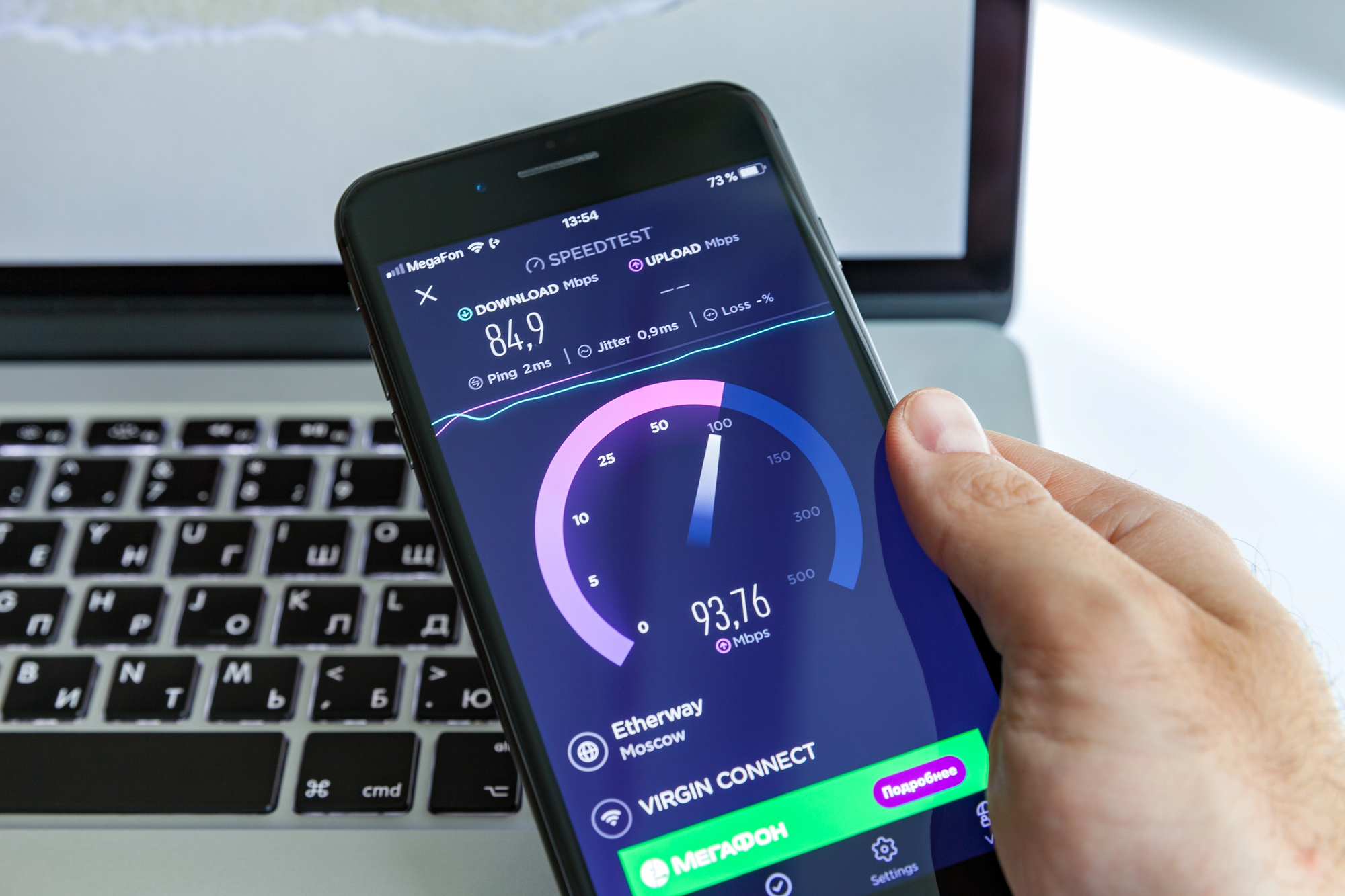
You need to start off by measuring your ping, and you can do this quickly and easy. There are many ping testing websites, which are completely free, and you literally just click a button, and it’ll run a ping test for you.
It is recommended that we test ping at different times of the day, and compare your ping results, to see any patterns, or one-off spikes.
If you want a more detailed and accurate ping reading, you can use the prompt command. On Windows, type “ping example.com” or your game server’s address, and it’ll give you individual response times and packet loss.
When looking at your results, focus on both the average ping and also consistency.
A stable 40 ms is usually smoother than say, a wildly fluctuating 20-150 ms, even if the average seems lower.
3 Reasons Your Ping Is High
Now you know how to test your ping (or latency), you now need to work out why your ping is so high, in the first place.
These are three reasons your ping could be reading high.
It’s Your Wi-Fi Connection
For my devices, it is usually my Wi-Fi connection. Even if you have a fast internet package, a weak or crowded Wi-Fi signal can really ruin your ping numbers.
Wireless adds an extra delay every time packets fight though Wi-Fi interference, low signal strength and competing devices.
Even things like walls, floors and a microwave can force your data to retry, spiking the latency.
Make sure your router is in the best possible place. Place it high, central and away from thick walls and metal (like pipes or a radiator).
Use the 5 GHz band for gaming (when possible), and it’s less prone to network congestion nearby.
Log-in to your router, and set a less crowded channel. If your router supports QoS, or bandwidth allocation, prioritize your gaming device, so its traffic jumps to the front of the line.
For the lowest ping, use wired Ethernet, whenever you can, and it’s possible/convenient.
Stop Background Downloads And Hidden Updates
If your Wi-Fi set-up is as good as it can be, your devices could be running in the background, hogging bandwidth.
Streaming apps, cloud back-ups, launches and game platforms often download patches, while you play, leading to a spike in bandwidth usage, and causing network congestion.
Pause or exit unnecessary background applications on your PC, console or phone.
Check download queues in Steam, Epic, Battle.net or app stores. Steam are always seemingly running downloads whenever I have it open on my PC.
Next, open up your system setting, and disable the “automatic updates” during your normal gaming hours, or select only overnight, so they don’t interfere with your gaming.
On Windows, you can also set your connection as “metered” to restrict heavy background traffic.
My biggest culprit is my Norton Antivirus. I know I need it, but it always runs background checks or scans without request, and it turns my computer into a brick.
Change your settings, so your antivirus software or driver tools to be manual-only, so they don’t do powerful updates in the background, slowing things down.
Check Your Router Settings
How your router is configured can make a difference in your gaming, and can cause potential delays.
Make sure you enable Quality of Service (QoS), and prioritize your gaming device, so it always gets first access to upstream bandwidth.
You can look at bandwidth allocation methods, which will help to limit streaming, and large downloads during play.
Keep your firmware updates up-to-date, as outdated firmware can cause you bugs, instability and extra sluggishness.
Check your router’s admin page regularly and install updates from the manufacturer.
Sometimes, overly aggressive features, like heavy traffic filtering, or an unnecessary VPN on the router, can add an extra processing delay. You can disable what you don’t truly need, and test your ping again, to see if it has improved.